
About the Design Studio
The Design Studio is the quickest and easiest way to make your very own custom designs. If you've ever used a word processor, then you can design a badge! The Design Studio allows you to place images and text exactly as you'd like to have them on the product. This guide will help you get the most out of the Design Studio.
This is what the Design Studio looks like when you first open it up:
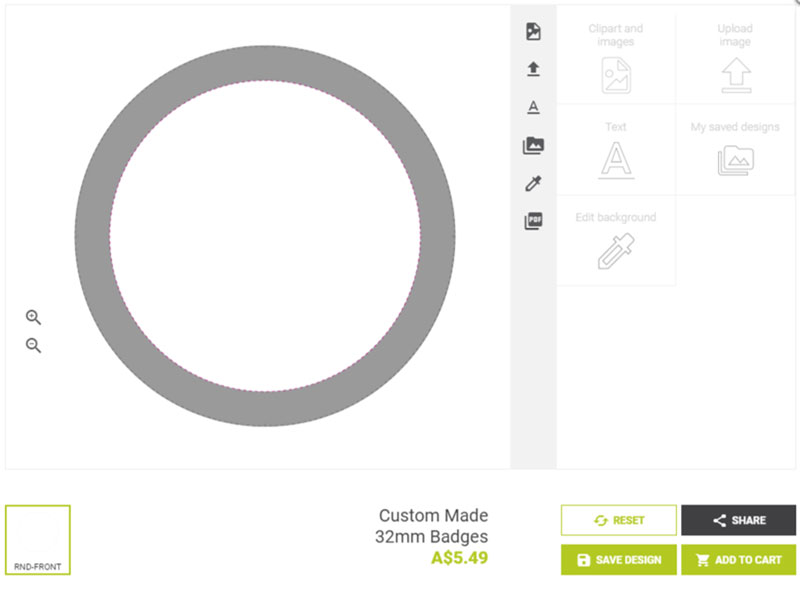
The tools that appear on the right hand side there will help you create the perfect design. They are also available by clicking on the icons on the grey strip in the centre. Let's take a look at some of the tools that are available.
Upload Image
This tool allows you to add your own image. This can be a photo, graphic, or any other image. You can upload images from your device, or connect to Facebook and Instagram to use the images you have there.
Once you have your image uploaded, it will appear in the middle of the design.
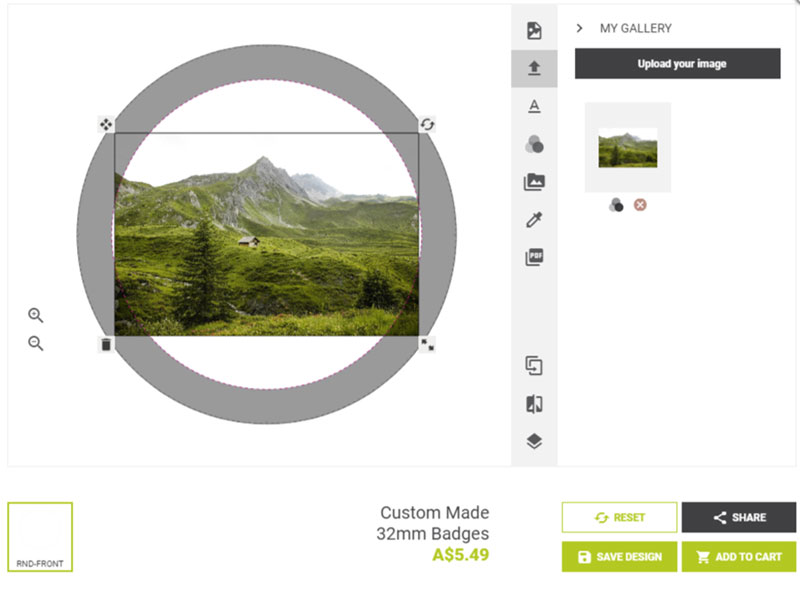
In the bottom right corner of the image, there is an icon that looks like two arrows pointing diagonally:
This is the Resize tool. Use it to stretch your image out over the whole area of the product, like this:
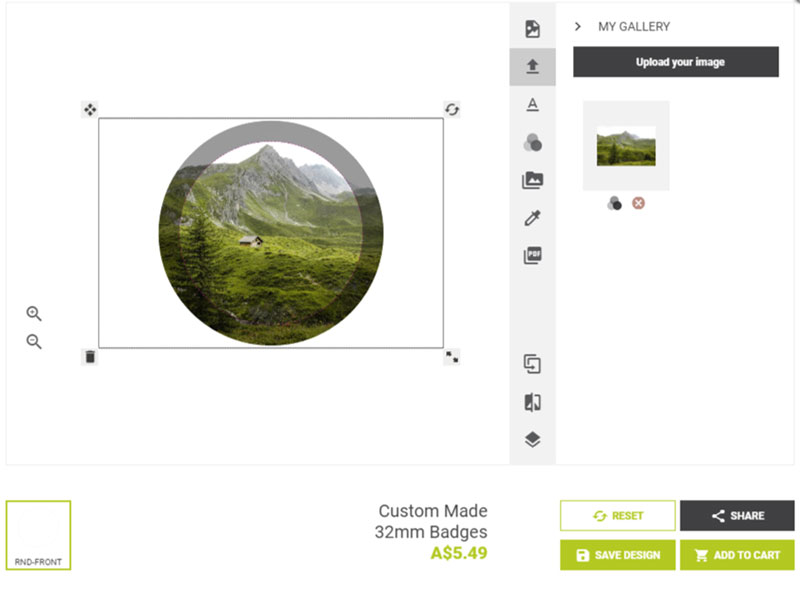
Important: the dark grey circle around the edge represents the bleed area. Anything in this area will appear on the edge of your badge. Make sure you extend any background into the bleed! To learn more about bleed, click here to read our Bleed Guide.
Text
As you might guess, this tool allows you to add text! The Design Studio has plenty of fonts and styles to choose from.
Once you have selected the Text tool, start typing to see your text appear in the middle of the product.
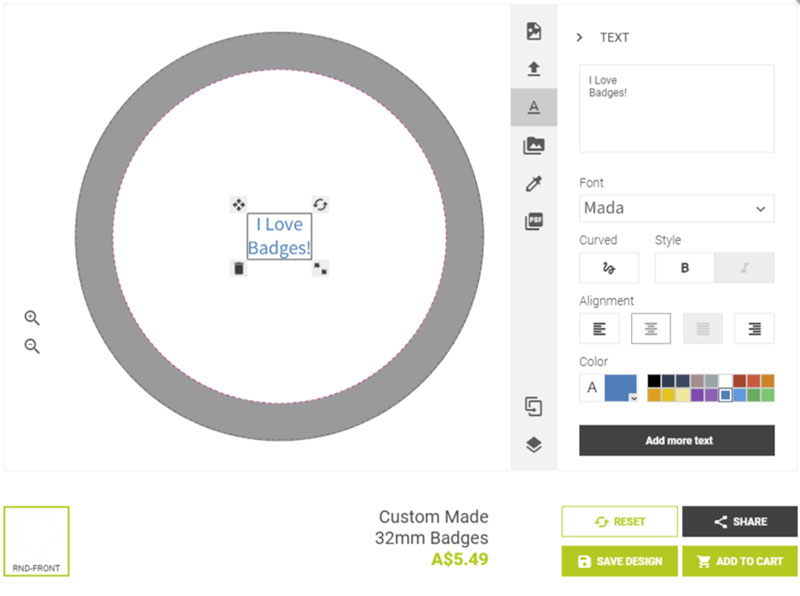
Have a look in the 'Font' drop-down box to find a font that you like, or change the colour by clicking on one of the small coloured squares.
In the bottom right corner of your text, there is an icon that looks like two arrows pointing diagonally:
This is the Resize tool. Drag this out to make your text as big as you like!
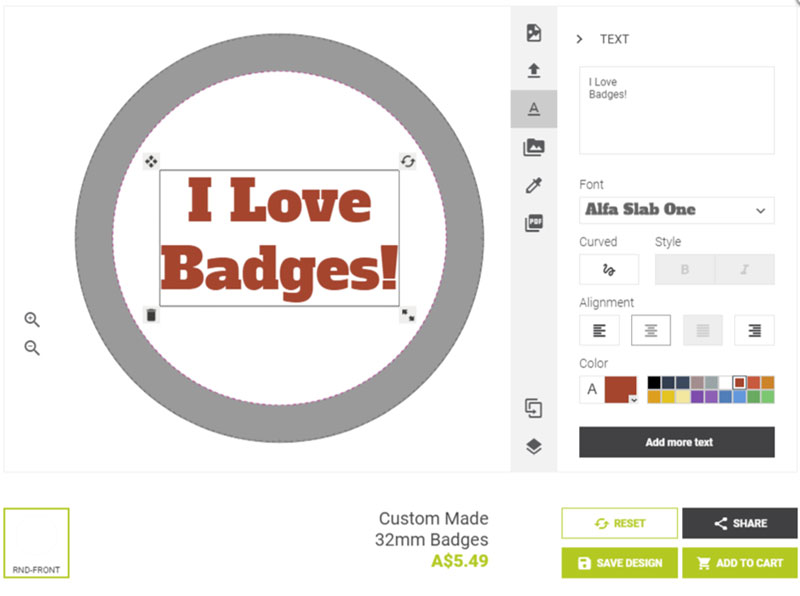
Important: the dark grey circle around the edge represents the bleed area. Anything in this area will appear on the edge of your badge. Make sure you keep anything you want on the front of the badge, like text, in the white area! To learn more about bleed, click here to read our Bleed Guide.
The Text tool also allows you to curve your text. This looks great and allows you to fit a lot more text on your badge!
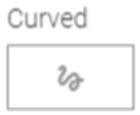
To get started, click on the 'Curved' button, just below Fonts. It looks like a squiggly line:
Once you have selected this, your text will magically appear on a curved line.
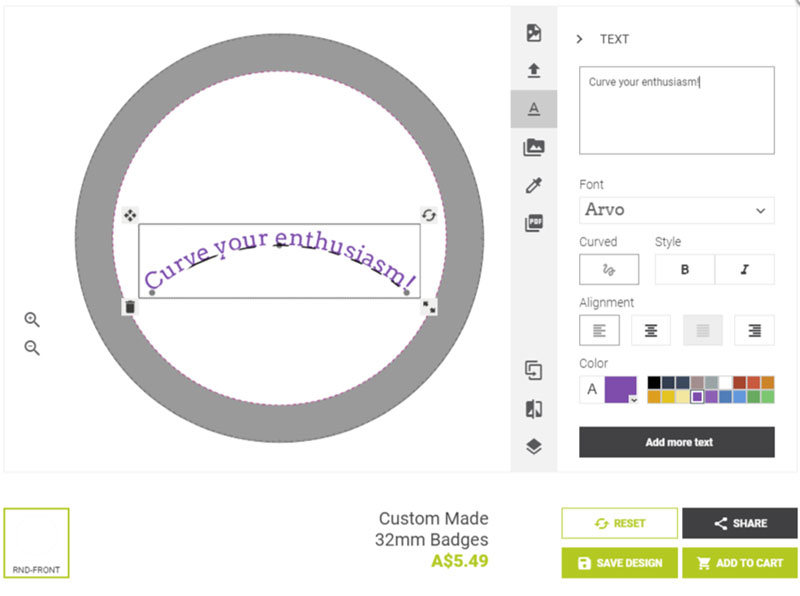
The curved line itself doesn't print, but allows you to see how your text is being affected. If you look carefully, there are three grey dots along the line - one on each side, and one in the middle (shown here circled in red):
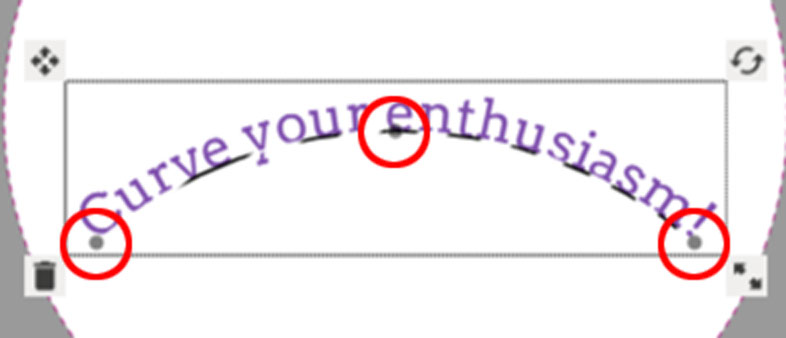
These are called 'handles', and allow you change the shape of the curve. Drag them around and see what happens - experiment!
In the top right corner of your text, you'll see the Move tool. It looks like four arrows pointing in different directions.
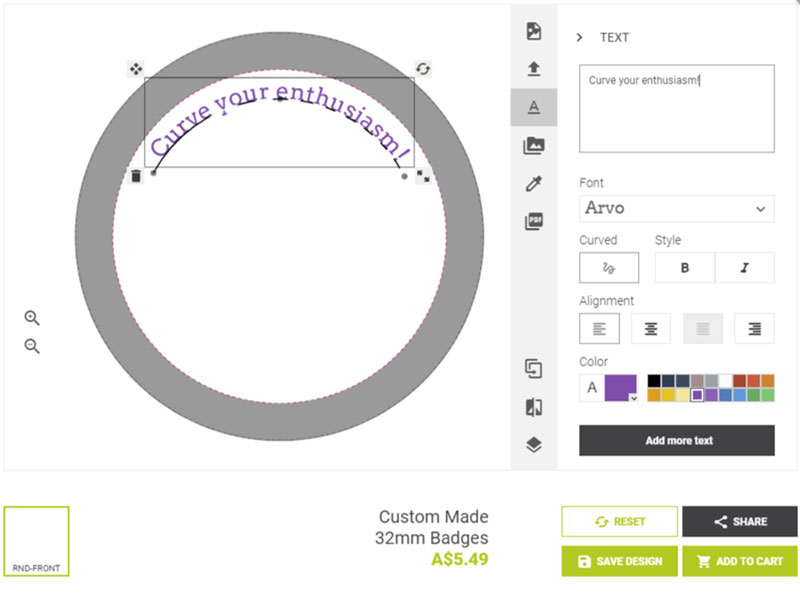
Drag this to move your text around. Text that follows the edge of the badge can look very effective, like this:
Finishing up

When you're all done, click the Add to Cart button on the bottom right hand side. This will take you to the Cart.
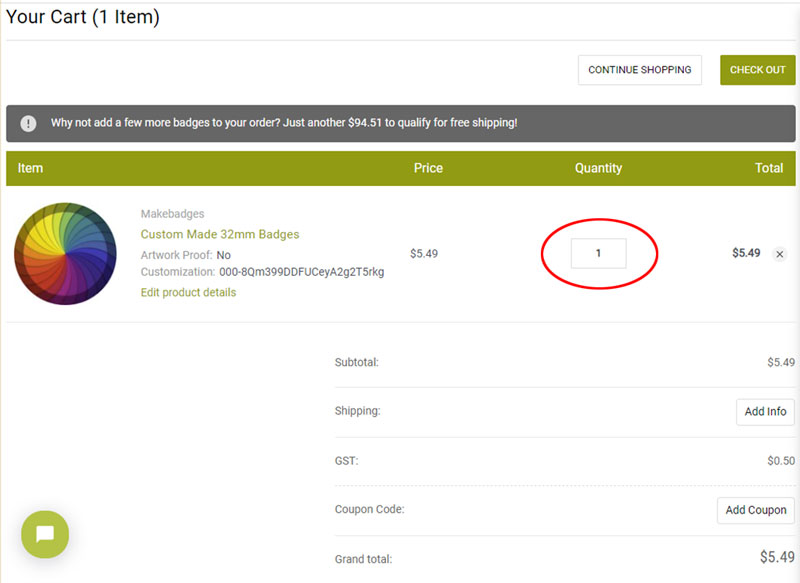
Enter the quantity you want in the box, circled here in red, and you're ready to check out!
Saving your Design
This feature allows you to save your design to work on it later. It's also great if you have several similar but slightly different designs - for example, name badges.
The button appears in the bottom right corner, next to the 'Add to Cart' button. Clicking on it will bring up this screen:
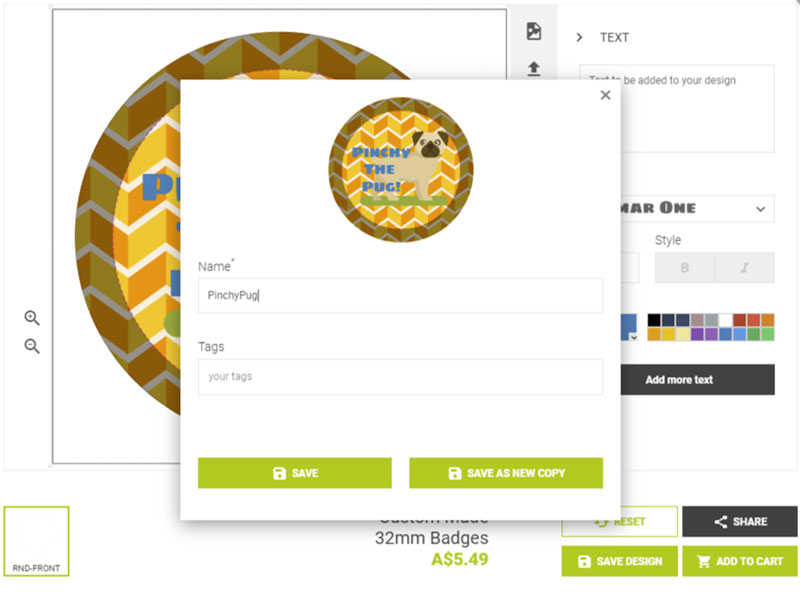
Give your design a clever name and click on the 'Save' button. If you aren't signed in, the Design Studio will warn you that your save is temporary - if you want to save your design permanently, sign in, and your design will be saved to your account.
Once you have saved your design, you can add it to the cart by clicking on the Add to Cart button in the bottom right. Then, go back to the Design Studio, and click on My Saved Designs.
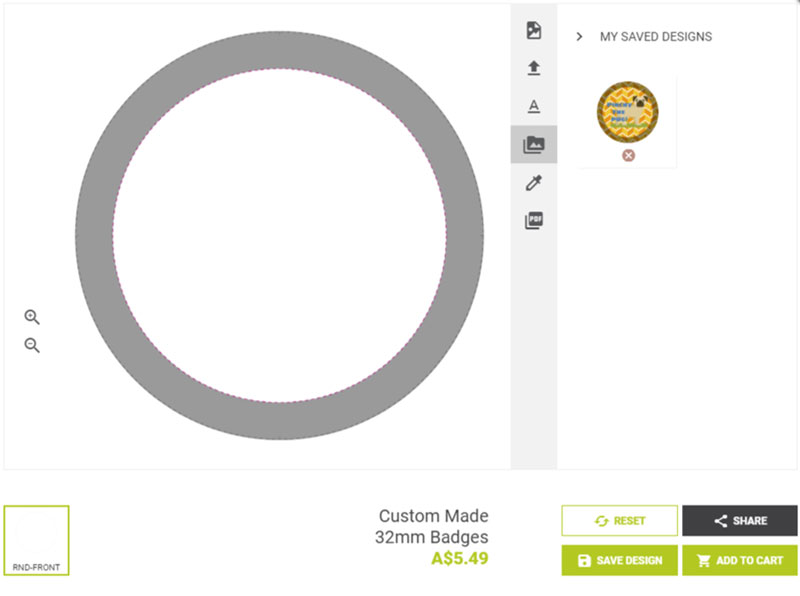
Click on your design, and it will immediately appear.
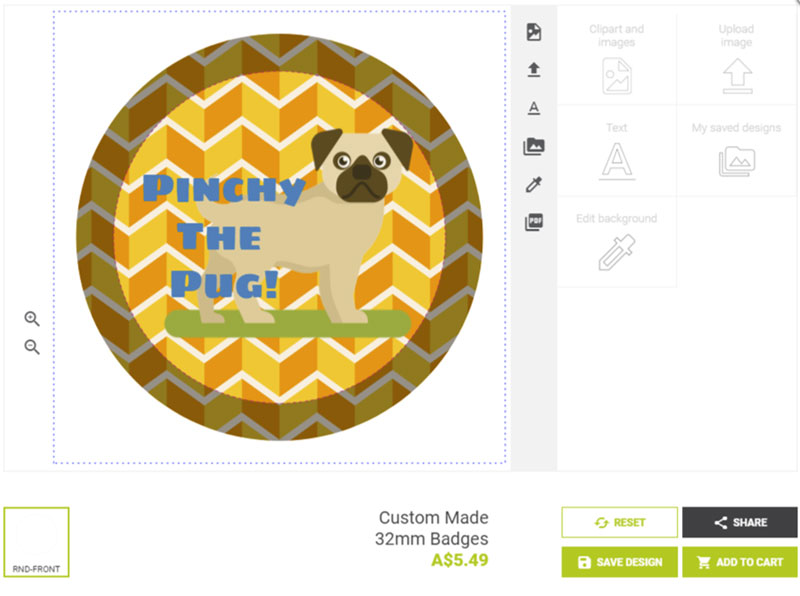
If you want to change any any element of you design, you can click on it to edit it. For example, clicking on the text in this design brings up the Text tool. Let's change Pinchy's name to Pinky.
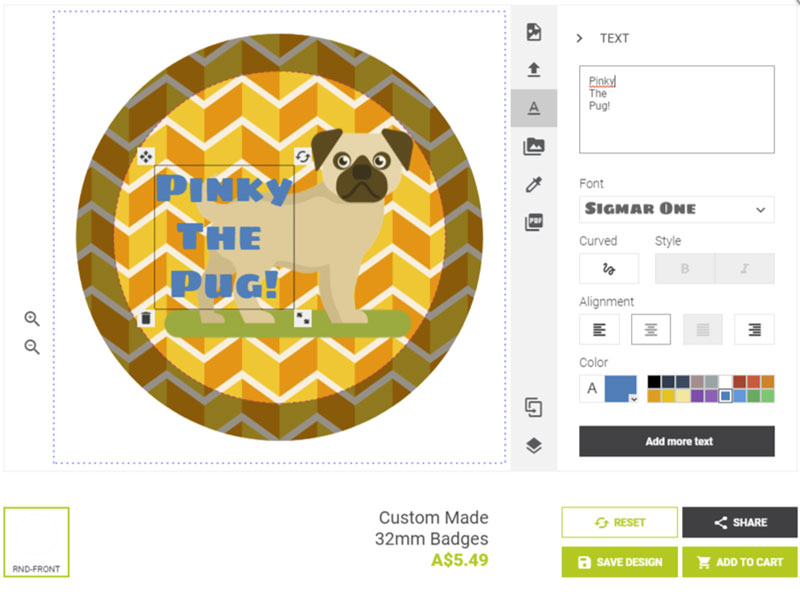
Once you've finished editing your design, you can add it to the cart.
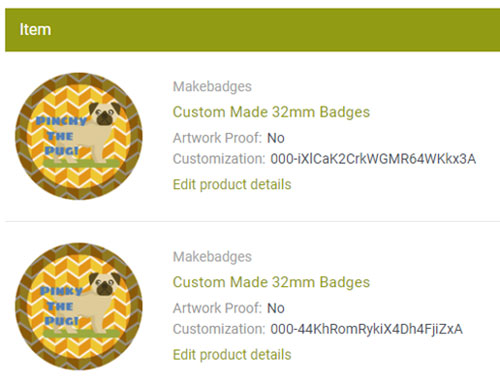
Repeat as many times as you like!
Need help?
If you have any questions, feel free to give us a call on 1300 16 44 16, or send us an email here - we'll be happy to walk you through it!